Chapter 4

Corel® Quattro® Pro 8 Product Commands
N - O
{NAME}
{NAME} is equivalent to the Choices key, F3, which displays a list of cell names in the current notebook, if cell names exist in the notebook. (If there are no named cells, the list of cell names won’t appear.)
Use {NAME} with {GOTO}. For example,
{GOTO}{NAME}
{NamedStyle.Option}
|
Command equivalent |
Equivalent to Format | Styles... |
|
{NamedStyle.Alignment “HorizAlignment(General | Left | Right | Center | Center Across Block), VertAlignment(Top | Center | Bottom), WrapText?(0|1), Orientation(Horizontal | Vertical)”} |
...| Included Properties | Alignment |
|
{NamedStyle.Define “StyleName”, Align?, NumericFormat?, Protection?, Lines?, Shading?, Font?, TextColor?} |
...| Define Style For |
|
{NamedStyle.Delete StyleName} |
...| Delete |
|
{NamedStyle.Font “FontName, PointSize, Bold, Italic, Underline, Strikeout”} |
...| Included Properties | Font |
|
{NamedStyle.Line_Drawing “LeftLine(None | Single | Double | Thick), TopLine, RightLine, BottomLine, LeftColor, TopColor, RightColor, BottomColor”} |
...| Included Properties | Line Drawing |
|
{NamedStyle.Numeric_Format NumericFormat} |
...| Included Properties | Format |
|
{NamedStyle.Protection Protect|Unprotect} |
...| Included Properties | Protection |
|
{NamedStyle.Shading ForegroundColor, BackgroundColor, Pattern} |
...| Included Properties | Shading |
|
{NamedStyle.Text_Color 0-15} |
...| Included Properties | Text Color |
{NamedStyle.Option} is equivalent to Format | Styles, which lets you create styles in the active notebook.
These command equivalents do not take effect until the command {NamedStyle.Define} is used to create (or modify) a style. The arguments Align? through TextColor? each specify one property to include in the style; use 1 to include the property, 0 to exclude the property.
{NamedStyle.Font} sets the new typeface and size of text in the cell. Bold, Italic, Underline and Strikeout can be “Yes” to include that type feature or “No” to omit it.
{NamedStyle.Shading} sets the shading of the cell; ForegroundColor and BackgroundColor are numbers from 0 to 15; each specifies a color on the notebook palette to use; Pattern is a string (“Blend1" through ”Blend7").
You can use {NamedStyle?} or {NamedStyle!} to display the Styles dialog box. {NamedStyle?} lets the user manipulate the dialog box, whereas {NamedStyle!} relies on the macro to manipulate it.
Example
This macro creates a new style named RedNote, which makes the active cells red, and sets a new font.
{NamedStyle.Font “Courier,10,Yes,No,No,No”}
{NamedStyle.Text_Color “4"}
{NamedStyle.Define RedNote,0,0,0,0,0,1,1}
{Navigate.Option}
|
Command |
Description |
|
{Navigate.SelectTable} |
Expands selection to the table boundaries |
|
{Navigate.Zoom2Fit} |
Zooms so that a table fits into the visible part of the screen |
|
{Navigate.GoTo Up | Left | Right | Down | TopLeft | TopRight | BottomLeft | BottomRight , <Extend?(0|1)>} |
Go to the sides or corners of a table. When the optional Extend? argument is 1, cell selection is extended. |
|
{Navigate.Jump Up | Left | Right | Down} |
Jump to the next table in a given direction, or jump to the current table boundary if in the middle of a table. |
Syntax (PerfectScript)
Navigate_GoTo (Where: enumeration {Up!; Left!; Right!; Down!; TopLeft!; BottomLeft!; TopRight!; BottomRight!}; [Extend?: enumeration {Yes!; No!}])
Navigate_Jump (Where: enumeration {Up!; Left!; Right!; Down!})
Navigate_SelectTable ()
Navigate_Zoom2Fit ()
{Navigate.Option} is equivalent to the navigation tools available on the Modeling Toolbar. {Navigate.SelectTable} is equivalent to the SpeedSelect button on the Modeling Toolbar, which expands selection from a cell or cells within a table to the entire table. {Navigate.Zoom2Fit} is equivalent to the Zoom To Fit button . {Navigate.GoTo} performs the same actions as the Top Left Of Table , Top Right Of Table , Bottom Left Of Table , and Bottom Right Of Table buttons. {Navigate.Jump} jumps to the next table or to the selected boundary of the current table.
Examples
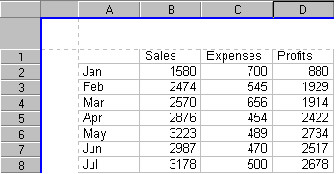
The following macro selects cell C6 in the table below, then selects the entire table that C6 belongs to, and zooms to fit the table on the page.
{SelectBlock A:C6}
{Navigate.SelectTable}
{Navigate.Zoom2Fit}
{NEXTPANE}
Syntax (Quattro Pro)
{NEXTPANE <CellAtPointer?>}
Syntax (PerfectScript)
NextPane ()
Parameters
CellAtPointer?
Specifies which cell should be active when the pane switches (0 or 1, optional).
{NEXTPANE} switches between the panes of a notebook window previously split using View | Split Window. The optional argument CellAtPointer? specifies whether the active cell in the pane will be at the location of the selector (1) or its previous position (0). This command is equivalent to the Pane key, F6.
{NEXTTOPWIN}
Syntax (Quattro Pro)
{NEXTTOPWIN <Number>}
Syntax (PerfectScript)
NextTopWin ()
Parameters
Number
Number of times to repeat the operation (optional).
{NEXTTOPWIN} is equivalent to the Next Window key, Ctrl+F6. It makes the next window active and moves the selector to it.
{NEXTWIN}
Syntax (Quattro Pro)
{NEXTWIN <Number>}
Syntax (PerfectScript)
NextWin ()
Parameters
Number
Number of times to repeat the operation (optional).
{NEXTWIN} is equivalent to Shift+F6. It makes the bottom window active and moves the selector to it. This macro is included for compatibility with Corel Quattro Pro for DOS.
{Notebook.Property}
{Notebook.Property} is equivalent to choosing Format | Notebook. Each command affects the active notebook. The next table lists the possible settings for Property. To display a description with syntax, choose that property in the following list:
|
Property |
Format | Notebook option |
|
Display |
Display |
|
Group_Mode |
none |
|
Macro_Library |
Library |
|
Palette |
Palette |
|
Password |
none |
|
Password_Level |
Level |
|
Recalc_Settings |
Settings |
|
Summary |
Summary |
|
System |
System |
|
Zoom_Factor |
Factor |
You can use {Notebook?} or {Notebook!} to display the Active Notebook dialog box. {Notebook?} lets the user manipulate the dialog box, whereas {Notebook!} relies on the macro to manipulate it.
{Notebook.Display.Option}
|
{Notebook.Display.Option} |
Equivalent to Format | Notebook... |
|
{Notebook.Display “VertScroll, HorizScroll, Tabs, Objects”} |
...| Display |
|
{Notebook.Display.Objects Show All|Show Outline|Hide} |
...| Display | Objects |
|
{Notebook.Display.Show_HorizontalScroller Yes|No} |
...| Display | Horizontal Scroll Bar |
|
{Notebook.Display.Show_Tabs Yes|No} |
...| Display | Sheet Tabs |
|
{Notebook.Display.Show_VerticalScroller Yes|No} |
...| Display | Vertical Scroll Bar |
Syntax (PerfectScript)
Notebook_Display (Settings: string)
Notebook_Display_Objects (Mode: string)
Notebook_Display_Show_HorizontalScroller (Show?: enumeration {Yes!; No!})
Notebook_Display_Show_Tabs (Show?: enumeration {Yes!; No!})
Notebook_Display_Show_VerticalScroller (Show?: enumeration {Yes!; No!})
{Notebook.Display.Option} is equivalent to options of the notebook property Display.
Example
This macro command hides the vertical and horizontal scroll bars of the active notebook, reveals the sheet tabs, and shows all objects.
{Notebook.Display “No,No,Yes,Show All”}
{Notebook.Group_Mode}
Syntax (Quattro Pro)
{Notebook.Group_Mode On|Off}
Syntax (PerfectScript)
Notebook_Group_Mode (Mode: string)
{Notebook.Group_Mode On|Off} activates or deactivates group mode. This command is equivalent to using the View | Group Mode command (or pressing Alt+F5).
{Notebook.Macro_Library}
Syntax (Quattro Pro)
{Notebook.Macro_Library Yes|No}
{Notebook.Macro_Library Yes|No} is equivalent to options of the notebook property Macro Library. To make the active notebook a macro library, use Yes.
{Notebook.Palette.Option}
|
{Notebook.Palette.Option} |
Equivalent to Format | Notebook... |
|
{Notebook.Palette Color1,Color2,...,Color16} |
...| Palette |
|
{NoteBook.Palette.Color_n “RGB value”} |
...| Palette |
|
{NoteBook.Palette.Color_n.value} |
...| Palette | Edit Color |
|
{NoteBook.Palette.Color_n.value} |
...| Palette | Edit Color |
|
{NoteBook.Palette.Color_n.value} |
...| Palette | Edit Color |
{Notebook.Palette.Option} is equivalent to the notebook property Palette, which lets you set the colors of the active notebook. The arguments of {Notebook.Palette} (Color1 through Color16) each have three parts, separated by commas: RedValue, GreenValue, and BlueValue. Each part is a number from 0 to 255. You can also edit a part individually (see the second example).
Examples
{Notebook.Palette.Color_3 “255,0,255"} sets the third color on the notebook palette to violet (Red 255, Blue 255).
{Notebook.Palette.Color_5.Blue “135"} sets the amount of blue in the fifth color to 135.
{Notebook.Password}
Syntax (Quattro Pro)
{Notebook.Password Password}
Syntax (PerfectScript)
Notebook_Password (Password: string)
{Notebook.Password} sets the password of the active notebook. The next save operation encrypts the file on disk.
Tip
Before specifying a password, set the password level using {Notebook.Password_Level}.
{Notebook.Password_Level}
Syntax (Quattro Pro)
{Notebook.Password_Level None|Low|Medium|High}
Syntax (PerfectScript)
Notebook_Password_Level (Level: string)
{Notebook.Password_Level} sets the password level of the active notebook. If you specify a password level of Low, Medium, or High, you must also specify a password using {Notebook.Password}.
{Notebook.Recalc_Settings}
Syntax (Quattro Pro)
{Notebook.Recalc_Settings “Mode, Order, Iterations, <AuditErrors?(0|1)>”}
{Notebook.Recalc_Settings} is equivalent to options of the notebook property Recalc Settings. This command equivalent sets the recalculation options of the active notebook. Mode options are “Automatic”, “Background”, and “Manual”. Order can be “Column-wise”, “Row-wise”, or “Natural”. Iterations specifies the number of times formulas are recalculated before calculation is considered complete (relevant only if Order is changed, or if you use circular references).
To highlight the source of error for each cell containing NA or ERR in the active notebook, set the optional argument AuditErrors? to 1.
{Notebook.Summary.Option}
|
Command Equivalent |
Equivalent to File | Properties |... |
|
{Notebook.Summary.Title Title } |
Title |
|
{Notebook.Summary.Subject Subject} |
Subject |
|
{Notebook.Summary.Author Author} |
Author |
|
{Notebook.Summary.Keywords Keywords} |
Keywords |
|
{Notebook.Summary.Comments Comments} |
Comments |
{Notebook.Summary.Option} is equivalent to File | Properties, which displays summary information about the current notebook.
You can use the following options with @COMMAND to get information about the notebook.
{Notebook.Statistics.Created}
{Notebook.Statistics.Directory}
{Notebook.Statistics.FileName}
{Notebook.Statistics.Last_Saved}
{Notebook.Statistics.Last_Saved_By}
{Notebook.Statistics.Revision_Number}
{Notebook.System}
Syntax (Quattro Pro)
{Notebook.System Yes|No}
{Notebook.System Yes|No} makes the active notebook a system notebook.
{Notebook.Zoom_Factor}
Syntax (Quattro Pro)
{Notebook.Zoom_Factor 10-400}
{Notebook.Zoom_Factor} is equivalent to options of the notebook property Zoom Factor, which sets the zoom factor of the active notebook (from 10% to 400%). This setting is for display only and does not affect printed output.
{NUMOFF} and {NUMON}
{NUMOFF} and {NUMON} are equivalent to Num Lock off and Num Lock on, respectively.
{OBJECTSPAGEGOTO}
{OBJECTSPAGEGOTO} displays the Objects sheet of the active notebook and is equivalent to View | Objects sheet (or pressing Shift+F5 when a spreadsheet sheet is active). When the Objects sheet is active, you can use {SELECTOBJECT} to select icons, and other object commands to manipulate them.
You can use {SELECTBLOCK} to move from the Objects sheet to a spreadsheet sheet.
{OLE.Option}
|
Command equivalent |
Equivalent to... |
|
{OLE.ActivateAs ObjectType} |
Edit | <OLE Object> | Convert | Activate As |
|
{OLE.AutomaticResize 0|1} |
OLE Object properties | Automatic Resizing |
|
{OLE.AutomaticUpdate 0|1} |
OLE Object properites | Automatic Update |
|
{OLE.Change_Link FileName} |
Edit | <OLE Object> | Change Link |
|
{OLE.Change_To_Picture} |
Edit | <OLE Object> | Convert (to picture object) |
|
{OLE.Convert ObjectType} |
Edit | <OLE Object> | Convert |
|
{OLE.DisplayAsIcon 0|1} |
Edit | <OLE Object> | Convert | Display As Icon |
|
{OLE.DoVerb Action} |
Edit | <OLE Object> | Play, Edit, or Open |
|
{OLE.OpenEdit} |
Alt+Double-click an OLE object to open it in the server application (instead of editing it in place) |
|
{OLE.Update} |
Edit | <OLE Object> | Update Link |
{OLE.Option} is equivalent to Edit | <OLE Object> commands and to some options in the Object Inspector menus of OLE objects. Each command affects the selected OLE object. The type of OLE object determines what command equivalents affect it:
|
OLE type |
Commands |
|
Embedded |
{OLE.DoVerb}, {OLE.Convert}, {OLE.Change_To_Picture}, {OLE.DisplayAsIcon}, {OLE.ActivateAs} |
|
Linked |
{OLE.DoVerb}, {OLE.Change_Link}, {OLE.Update}, {OLE.Convert}, {OLE.Change_To_Picture}, {OLE.DisplayAsIcon}, and {OLE.ActivateAs} |
Example
This macro selects an OLE object named Embedded1, lets the user edit the data (in the OLE server), and then converts the object into a picture (disabling the OLE link).
{SELECTFLOAT Embedded1}
{OLE.DoVerb Edit}
{OLE.Change_To_Picture}
{ONERROR}
Syntax (Quattro Pro)
{ONERROR BranchLocation, <MessageLocation>, <ErrorLocation>}
Parameters
BranchLocation
First cell of the macro to run in case of an error.
MessageLocation
Cell in which to store any error message (optional).
ErrorLocation
Cell in which to store the address of the cell containing the macro error (optional).
Normally, if an error occurs during macro execution, the macro ends and you see an error message. {ONERROR} tells Corel Quattro Pro to branch to a different location (BranchLocation) if an error is encountered and store the error message in MessageLocation for future reference. Corel Quattro Pro stores the location of the error in ErrorLocation. MessageLocation and ErrorLocation are optional. If MessageLocation is omitted, no error message will be displayed or stored.
Only one {ONERROR} command can be in effect at a time, so each time it is called, the most recent {ONERROR} replaces the previous one. If an error occurs, the {ONERROR} state is “used up” and must be redeclared. It is best to declare {ONERROR} at the very beginning of your macro, or at least before any procedure is likely to result in an error.
In general, {ONERROR} will not capture macro programming errors, such as an incorrect sequence of commands, or an attempt to call a nonexisting subroutine. Nor will it detect syntax errors within a macro itself, such as an error resulting from the incorrect use of a macro keyword.
Typical errors that {ONERROR} detects include
Example
The following macro uses {ONERROR} by first deliberately causing an error (trying to insert a row that would push text off the bottom of the notebook), and then beeps when that error occurs.
\G {ONERROR _on_err,err_msg,err_loc}
{EditGoto A8192}
{PUTCELL “This is the end”}
{UP}
{BlockInsert.Rows C(0)R(0), “Entire”}
_on_err {BEEP 5}
err_msg
err_loc
{OPEN}
Syntax (Quattro Pro)
{OPEN Filename,AccessMode}
Parameters
Filename
File name.
AccessMode
R, M, W, A, or L.
{OPEN} establishes a connection to Filename so you can use other file-access macro commands ({READ}, {WRITE}, and so on) on it. There are four different access modes:
R (Read-Only) Allows only reading from this file, ensuring no changes are made to it. {WRITE} and {WRITELN} cannot be used with a file opened as read-only.
M (Modify) Opens an existing file for modification. All reading and writing commands can be used with a file opened for modification. You can also use this access mode to open a stream to a communications port (for example, “COM1") or a printer port (for example, ”LPT1").
W (Write) Opens a new file with the name given in {OPEN}. If a file already exists with that name, the existing file is erased. All reading and writing commands can be used with a file opened for writing.
A (Append) Opens an existing file for modification. Allows writing to the selected file only, and positions the file pointer at the end of the file.
L (Locate) Opens and closes a file to locate it.
Filename’s full name and access path must be given, and the entire name must be in quotes. For instance, to open and modify the file DATA.TXT in the subdirectory called FILES on drive C, use the command {OPEN “C:\FILES\DATA.TXT”,M}. If any part of the access path or file name is left out, the file might not be found.
Tip
Although {OPEN} can provide access to any type of file (including .WB3 spreadsheet files), Corel Quattro Pro’s file-access macro commands are designed to work only with plain text files. Using these commands with any other file type is not recommended and can result in corruption of that file. Make a backup copy of your file before using {OPEN} on it.
Once {OPEN} runs successfully, Corel Quattro Pro skips to the next row of the macro and continues executing instructions there. {OPEN Filename,R}, {OPEN Filename,M}, and {OPEN Filename,A} fail if the file is not found. {OPEN Filename,W} fails if the supplied access path or file name is invalid. If {OPEN} fails, Corel Quattro Pro continues executing commands in the same cell as the {OPEN} command. (See the third macro below for an example.) You can use {ONERROR} to trap some errors that occur in {OPEN}.
Examples
The following example opens the file named MYDATA.TXT for reading. If the file does not exist in the default data directory, the command fails.
{OPEN “MYDATA.TXT”,R}
The next example creates a file MYDATA.TXT on drive A for writing. If there is already a file on drive A with that name, it is erased. This command will fail only if there is no disk in drive A.
{OPEN “A:MYDATA.TXT”,W}
The last example demonstrates how to do error trapping in an {OPEN} macro. When you press Ctrl+H, Corel Quattro Pro attempts to open the file C:\MYDIR\DATA.TXT. If that succeeds, the macro stops, since there are no more commands in the row below. If {OPEN} fails (meaning the file does not exist), the adjacent {BRANCH} runs. The subroutine _try_again then attempts to create the file. If that succeeds, the macro restarts, since {OPEN} should succeed now that the file has been created. If _try_again fails, probably an invalid directory path was given. Therefore, the adjacent {BRANCH} goes to _bad_dir, which displays a relevant error message with pertinent instructions.
\H {OPEN “C:\MYDIR\DATA.TXT”,M}{BRANCH _try_again}
{CLOSE}
_try_again {OPEN “C:\MYDIR\DATA.TXT”,W}{BRANCH _bad_dir}
{CLOSE}
{BRANCH \H}
_bad_dir {EditGoto err_loc}{BEEP 4}
{PUTCELL “The directory C:\MYDIR\ does not exist.”}
{DOWN}
{PUTCELL “Create it, then try again.”}
{DOWN}
err_loc
{Optimizer.Option}
|
Command equivalent |
Equivalent to Tools | Numeric Tools | Optimizer... |
|
{Optimizer.Add Constraint#, Cell, <=|>=|=|Integer, Constant} |
...| Constraints | Add |
|
{Optimizer.Answer_Reporting Cell} |
...| Options | Reporting | Answer Report Cells |
|
{Optimizer.Auto-scale 0|1} |
...| Options | Automatic Scaling |
|
{Optimizer.Change Constraint#, Cell, <=|>=|=|Integer, Constant} |
...| Constraints | Change |
|
{Optimizer.Delete Constraint#} |
...| Constraints | Delete |
|
{Optimizer.Derivatives Central|Forward} |
...| Options | Derivatives |
|
{Optimizer.Detail_Reporting Cell} |
...| Options | Reporting | Detail Report Cells |
|
{Optimizer.Estimates Quadratic|Tangent} |
...| Options | Estimates |
|
{Optimizer.Linear 0|1} |
...| Optimizer | Options | Assume Linear |
|
{Optimizer.Load_Model} |
...| Options | Load Model |
|
{Optimizer.Max_Iters Value} |
...| Options | Max Iterations |
|
{Optimizer.Max_Time Value} |
...| Options | Max Time |
|
{Optimizer.Model_Cell Cell} |
...| Options | Load Model, Save Model |
|
{Optimizer.Precision Value} |
...| Options | Precision |
|
{Optimizer.Reset} |
...| Reset |
|
{Optimizer.Save_Model} |
...| Options | Save Model |
|
{Optimizer.Search Conjugate|Newton} |
...| Options | Search |
|
{Optimizer.Show_Iters 0|1} |
...| Options | Show Iteration Results |
|
{Optimizer.Solution_Cell SolutionCell} |
...| Goal | Solution Cell |
|
{Optimizer.Solution_Goal Max|Min|None|Target Value} |
...| Goal |
|
{Optimizer.Solve} |
...| Solve |
|
{Optimizer.Target_Value Value} |
...| Target Value |
|
{Optimizer.Tolerance Value} |
...| Options | Tolerance |
|
{Optimizer.Variable_Cells Cell(s)} |
...| Variable Cells |
{Optimizer.Option} is the command equivalent for Tools | Numeric Tools | Optimizer. It performs goal-seeking calculations and solves sets of linear and nonlinear equations and inequalities.
Constraint# refers to a constraint’s order in the constraint list. Constant may be a value or a cell containing a value. The Value for Target_Value may also be a value or a cell. Use {Optimizer.Solve} after the other commands to calculate the solution.
To save an Optimizer model, use {Optimizer.Model_Cell Cell} {Optimizer.Save_Model}. To load a model, use {Optimizer.Model_Cell Cell}{Optimizer.Load_Model}
You can use {Optimizer?} or {Optimizer!} to display the Optimizer dialog box. {Optimizer?} lets the user manipulate the dialog box, whereas {Optimizer!} relies on the macro to manipulate it.
Example
The following macro sets up an Optimizer problem designed to maximize the formula in D6 by varying cells B8..B10. Seven constraints limit the solution. All options have been changed from their default settings. T2 and G13 are the upper-left cells of the report selections.
{Optimizer.Solution_cell A:D6}
{Optimizer.Solution_goal Max}
{Optimizer.Variable_cells A:B8..A:B10}
{Optimizer.Add 1,"A:D8..A:D8",<=,"1000"}
{Optimizer.Add 2,"A:B8..A:B8",>=,"100"}
{Optimizer.Add 3,"A:B9..A:B9",>=,"100"}
{Optimizer.Add 4,"A:B10..A:B10",>=,"100"}
{Optimizer.Add 5,"A:D8..A:D8",>=,"500"}
{Optimizer.Add 6,"A:D9..A:D9",<=,"900"}
{Optimizer.Add 7,"A:D10..A:D10",<=,"110000"}
{Optimizer.Max_Time 50}
{Optimizer.Max_Iters 300}
{Optimizer.Precision 5E-05}
{Optimizer.Linear 1}
{Optimizer.Show_Iters 1}
{Optimizer.Estimates Quadratic}
{Optimizer.Derivatives Central}
{Optimizer.Search Conjugate}
{Optimizer.Detail_Reporting A:T2..A:T2}
{Optimizer.Answer_Reporting A:G13..A:G13}
{Optimizer.Solve}
{Order.Option}
|
Command equivalent |
Equivalent to ... |
|
{Order.Backward} |
Format | Object Order | Send Backward |
|
{Order.Forward} |
Format | Object Order | Bring Forward |
|
{Order.ToBack} |
Format | Object Order | Send to Back |
|
{Order.ToFront} |
Format | Object Order | Bring to Front |
{Order.Option} is equivalent to Format | Object Order, which reorders overlapping objects in a chart or dialog window. Each command affects selected objects in the active window.
{Outline.Option}
|
{Outline.AutoOutline} Outline_AutoOutline() |
Creates an outline automatically on the current pane/sheet. Equivalent to Tools | Outline | Auto Outline. |
|
{Outline.Collapse} Outline_Collapse() |
Collapses an expanded group of rows or columns. If the cells are not an entire row or column, and the outline is inside a group, whichever contains the most elements (rows or columns)—and is inside a current group—will be the one that is collapsed. Equivalent to Tools | Outline | Collapse Group. |
|
{Outline.Expand} Outline_Expand() |
Expands a collapsed group of rows or columns. If the cells are not an entire row or column, and the outline is inside a group, whichever contains the most elements (rows or columns)—and is inside a current group—will be the one that is expanded. Equivalent to Tools | Outline | Expand Group. |
|
{Outline.Group} Outline_Group() |
Groups rows or columns. If the cells are not an entire row or column, whichever contains the most elements (rows or columns) will be the one that is grouped. Equivalent to Tools | Outline | Group. |
|
{Outline.Hide 0|1} Outline_Hide(Hide?: 0|1) |
Either hides or shows the outline in the current pane/sheet. Equivalent to Tools | Outline | Show Outline. |
|
{Outline.Summary Above|Below, Left|Right} Outline_Summary(Row?: Above|Below; Col?: Left|Right) |
Sets whether the summary will be above or below for row-based groups, and left or right for column- based groups. Equivalent to Tools | Outline | Options. |
|
{Outline.ToLevel} Outline_ToLevel (RowCol?: string; [Level?: numeric]) |
Expand s(or collapses) the current outline group to the desired Level #. If the optional level# is left out, it will expand ALL groups. Equivalent to clicking one of the Level buttons on the outline pane to expand/collapse to that level. |
|
{Outline.UnGroup} Outline_UnGroup() |
Ungroups rows or columns. If the cells are not an entire row or column, whichever contains the most elements (rows or columns) will be the one that is ungrouped.. If the cells do not span the ENTIRE group, only those rows/columns that are inside the cells will be ungrouped. Equivalent to Tools | Outline | Ungroup. |
|
{Outline.UngroupAll} Outline_UngroupAll() |
Removes all groups on the current pane/sheet. Equivalent to Tools | Outline | Ungroup All. |